
Hardware for beginners can seem overwhelming at first. Computers contain dozens of physical parts, and each one serves a specific purpose. The good news? Understanding the basics doesn’t require an engineering degree.
This guide breaks down the essential hardware components inside every computer. Readers will learn what each part does, how they work together, and what to consider when upgrading. By the end, the mystery behind that humming box will make a lot more sense.
Table of Contents
ToggleKey Takeaways
- Hardware for beginners starts with understanding the difference between internal components (CPU, RAM, storage) and external devices (monitors, keyboards).
- The CPU acts as the computer’s brain, processing instructions and coordinating all other hardware components.
- RAM provides temporary workspace for active programs, while storage (HDDs and SSDs) keeps files permanently—don’t confuse the two.
- All hardware components connect through the motherboard, and balanced parts prevent performance bottlenecks.
- Common beginner-friendly upgrades include adding RAM, swapping an HDD for an SSD, or upgrading the GPU for gaming and creative work.
- Always check compatibility before purchasing new hardware, as CPUs, RAM, and other parts have specific requirements.
What Is Computer Hardware?
Computer hardware refers to the physical components that make up a computer system. These are the parts users can touch and see, the monitor, keyboard, internal circuits, and everything in between.
Hardware differs from software in one key way: software consists of programs and instructions, while hardware provides the machinery to run them. Think of it like a car. The engine, wheels, and steering column are hardware. The GPS navigation system’s programming is software.
Hardware falls into two main categories:
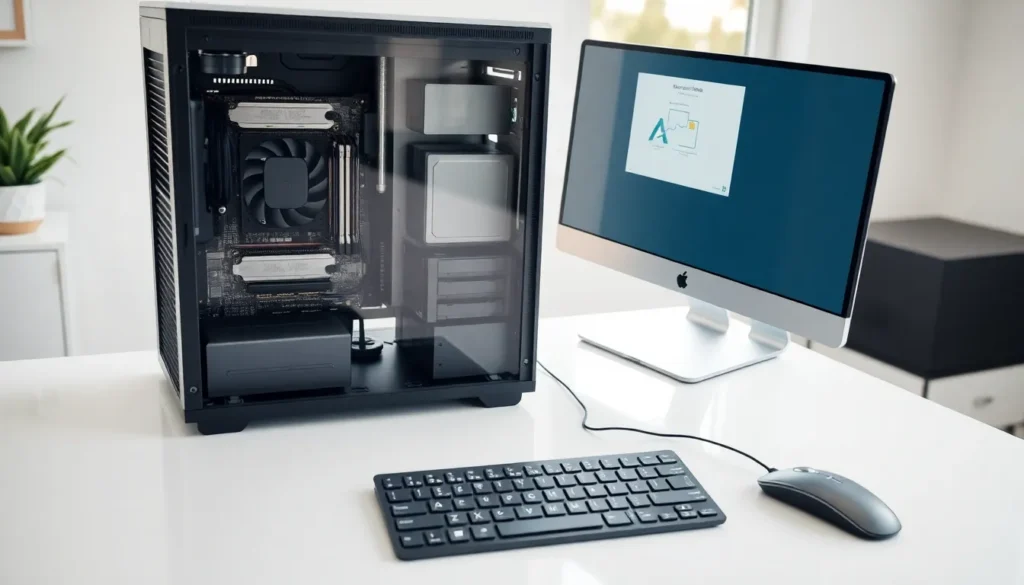
- Internal hardware: Components inside the computer case, such as the motherboard, processor, and hard drive
- External hardware: Devices connected from outside, including monitors, keyboards, mice, and printers
For beginners learning about hardware, starting with internal components offers the clearest path to understanding how computers actually function. These parts form the foundation of every computing task, from browsing the web to editing videos.
Essential Hardware Components Every Beginner Should Know
Every computer contains several core hardware components. Beginners should focus on these fundamental parts first.
The Central Processing Unit (CPU)
The CPU acts as the brain of the computer. It processes instructions from software and coordinates all other hardware components. When someone clicks a link or opens a file, the CPU handles that request.
Modern CPUs contain multiple cores. A dual-core processor handles two tasks simultaneously, while an octa-core processor manages eight. More cores generally mean better performance for demanding applications like video editing or gaming.
Two major companies dominate the CPU market: Intel and AMD. Both offer processors at various price points. Beginners should know that clock speed (measured in GHz) indicates how fast a CPU processes instructions. A 3.5 GHz processor completes more cycles per second than a 2.5 GHz chip.
Memory and Storage Basics
Many beginners confuse memory and storage. They serve different purposes.
RAM (Random Access Memory) provides temporary workspace for active programs. When someone opens a browser or spreadsheet, the computer loads it into RAM for quick access. More RAM allows users to run more programs simultaneously without slowdowns. Most modern computers need at least 8GB of RAM for smooth operation.
RAM clears itself when the computer shuts down. It’s fast but temporary.
Storage keeps files permanently. Two main types exist:
- Hard Disk Drives (HDDs): Traditional storage using spinning magnetic disks. They’re affordable and offer large capacities but run slower than newer alternatives.
- Solid State Drives (SSDs): Use flash memory with no moving parts. They’re faster, quieter, and more durable, but cost more per gigabyte.
Many users now install an SSD for their operating system and frequently used programs, then add an HDD for bulk file storage. This approach balances speed and affordability.
How Hardware Components Work Together
Understanding individual hardware components is useful. But knowing how they interact reveals why performance matters.
Here’s what happens when someone launches a program:
- The storage drive contains the program files
- The CPU receives the launch command and requests those files
- Data moves from storage into RAM for quick access
- The CPU processes instructions from RAM and sends results to the display
- The graphics card (GPU) renders visual elements on screen
The motherboard connects all these components. It’s a large circuit board containing slots, ports, and pathways for data transfer. Every piece of internal hardware plugs into the motherboard.
The power supply unit (PSU) converts electricity from wall outlets into the voltages each component needs. A quality PSU protects hardware from power fluctuations.
Bottlenecks occur when one component can’t keep up with others. A powerful CPU paired with limited RAM creates frustrating slowdowns. Hardware for beginners becomes clearer once users understand these relationships. Balanced components deliver the best experience.
Tips for Choosing and Upgrading Hardware
Upgrading hardware extends a computer’s useful life. Beginners should consider these factors before purchasing.
Identify the weak link first. If programs take forever to load, storage speed might be the issue. Frequent freezing during multitasking often points to insufficient RAM. Running diagnostics or monitoring resource usage helps pinpoint problems.
Check compatibility. Not all hardware works with every system. CPUs require specific motherboard sockets. RAM comes in different generations (DDR4, DDR5) that aren’t interchangeable. Always verify compatibility before buying.
Consider these common upgrades:
- Adding RAM offers the easiest performance boost for most users
- Swapping an HDD for an SSD dramatically improves boot times and program responsiveness
- Upgrading the GPU benefits gamers and creative professionals most
Set a realistic budget. Hardware prices vary widely. Mid-range components often provide the best value. Top-tier parts deliver diminishing returns for casual users.
Buy from reputable sources. New hardware typically includes warranties. Used components can save money but carry more risk.
For beginners exploring hardware upgrades, starting small makes sense. A RAM upgrade or SSD installation builds confidence before tackling more complex projects.