
Reliable hardware tips can extend the lifespan of a computer by years. Most performance issues stem from preventable problems, dust buildup, overheating, and neglected maintenance. The good news? A few simple habits make a significant difference.
Whether someone owns a gaming rig, a workstation, or a family desktop, these hardware tips apply across the board. This guide covers practical strategies for keeping systems running smoothly, from temperature management to smart upgrades. Each section offers actionable steps that anyone can carry out today.
Table of Contents
ToggleKey Takeaways
- Clean your computer’s interior every 3–6 months with compressed air to prevent dust buildup and overheating.
- Monitor CPU temperatures using free tools like HWMonitor—consistent readings above 85°C indicate a cooling problem.
- Prioritize RAM and SSD upgrades for the biggest performance improvements on a budget.
- Practice proper cable management to improve airflow and simplify future troubleshooting.
- Never defragment SSDs, but do enable TRIM and keep drives under 75% capacity for optimal performance.
- Follow these hardware tips consistently to extend your computer’s lifespan by years.
Keep Your Hardware Clean and Dust-Free
Dust is the silent killer of computer hardware. It accumulates inside cases, clogs fans, and creates an insulating layer over components. This layer traps heat and forces systems to work harder than necessary.
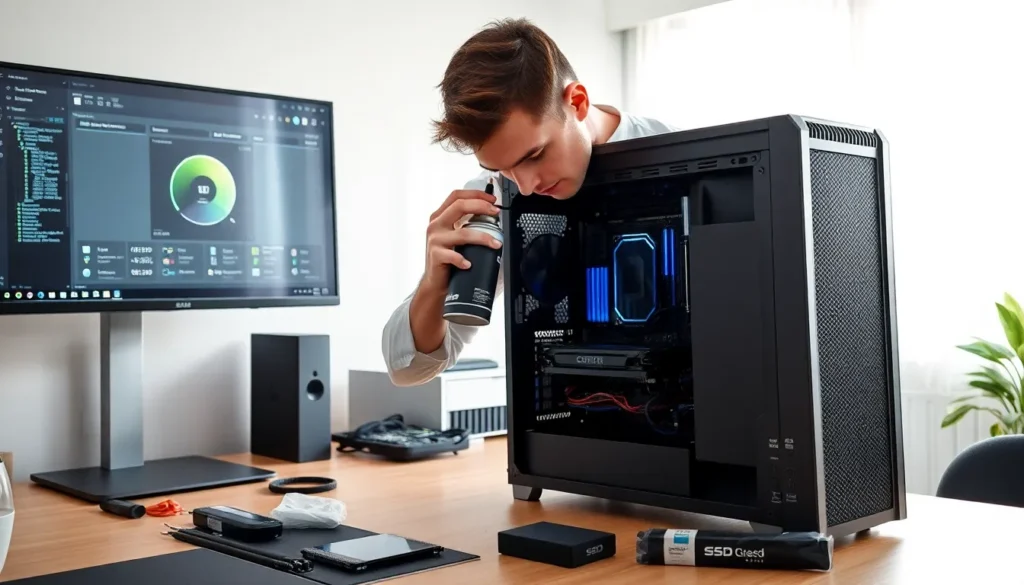
One of the most effective hardware tips involves regular cleaning. Users should open their cases every three to six months and remove dust with compressed air. They should pay special attention to CPU coolers, GPU fans, and power supply vents. These areas collect the most debris.
A few cleaning best practices include:
- Power down completely and unplug the system before opening it
- Use short bursts of compressed air rather than continuous spraying
- Hold fans in place while cleaning to prevent bearing damage
- Clean filters on cases that have them, these trap dust before it enters
For laptops, users can blow compressed air into the vents. But, they should avoid forcing dust deeper into the machine. Professional cleaning may be worthwhile for laptops that haven’t been serviced in years.
Regular cleaning prevents overheating issues and keeps fans running quietly. It’s one of those hardware tips that costs almost nothing but delivers real results.
Monitor and Manage System Temperatures
Heat degrades electronics over time. High temperatures reduce component lifespan and cause throttling, where processors slow down to prevent damage. Monitoring temperatures helps users catch problems early.
Free tools like HWMonitor, Core Temp, and Open Hardware Monitor display real-time temperature data. Users should check CPU temperatures under load, anything consistently above 85°C (185°F) signals a cooling problem.
Several hardware tips address thermal management:
- Reapply thermal paste every two to three years on CPUs and GPUs
- Improve case airflow by ensuring intake and exhaust fans work together
- Position the computer properly, avoid enclosed cabinets and ensure at least a few inches of clearance around vents
- Consider aftermarket coolers if stock cooling proves insufficient
Ambient room temperature matters too. A computer in a hot room will run hotter than one in an air-conditioned space. During summer months, users might notice higher temperatures and louder fans, that’s normal.
For those who push their hardware hard with gaming or video editing, investing in quality cooling pays dividends. Tower coolers and AIO liquid coolers offer better thermal performance than stock solutions. These hardware tips help maintain consistent performance during demanding tasks.
Upgrade Components Strategically
Not every upgrade delivers equal value. Smart hardware tips focus spending where it matters most for each user’s needs.
RAM upgrades often provide the biggest bang for the buck. A system with 8GB of RAM will feel sluggish running modern applications. Upgrading to 16GB or 32GB eliminates this bottleneck for most users. The process takes about five minutes on desktops.
Storage upgrades come next in priority. Swapping an old hard drive for an SSD transforms system responsiveness. Boot times drop from minutes to seconds. Applications launch almost instantly. NVMe drives offer even faster speeds for those with compatible motherboards.
GPU upgrades benefit gamers and creative professionals most. But, users should ensure their power supply can handle new graphics cards. Many modern GPUs require 650W or higher power supplies.
Before upgrading, users should:
- Check compatibility with existing components
- Verify power requirements against current power supply capacity
- Research benchmarks to understand real-world performance gains
- Consider the upgrade path, will other components bottleneck the new part?
These hardware tips prevent wasted money on upgrades that don’t match actual needs. Sometimes a $50 RAM upgrade beats a $300 GPU upgrade in everyday responsiveness.
Practice Proper Cable Management
Messy cables restrict airflow. They also make troubleshooting and upgrades more difficult. Good cable management improves both aesthetics and function.
Modern cases include cable routing holes and tie-down points behind the motherboard tray. Users should route power cables, SATA cables, and front panel connectors through these channels. This keeps the main chamber clear for airflow.
Practical hardware tips for cable management include:
- Bundle cables together using velcro straps or zip ties
- Route cables along case edges rather than across components
- Use modular power supplies when possible, they eliminate unused cables entirely
- Label cables during builds to simplify future troubleshooting
For external setups, cable management prevents clutter and reduces tripping hazards. Cable clips, sleeves, and under-desk trays keep workspaces organized.
Clean cable runs also improve cooling efficiency. Air moves more freely through an organized case. The temperature difference might only be a few degrees, but every bit helps with longevity.
Maintain Your Storage Drives
Storage drives require attention even if they seem to work fine. Failing drives often show warning signs before complete failure.
For traditional hard drives, users should run occasional defragmentation. Windows includes a built-in tool that optimizes file placement. But, SSDs should never be defragmented, it provides no benefit and reduces drive lifespan.
SSD-specific hardware tips include:
- Enable TRIM to maintain write performance over time
- Avoid filling drives beyond 75% capacity, performance degrades as drives fill up
- Update firmware when manufacturers release new versions
- Monitor drive health using tools like CrystalDiskInfo
SMART data reveals drive health status. Warning signs include reallocated sectors, pending sectors, and high error counts. Users who spot these issues should back up immediately and plan for replacement.
Regular backups protect against drive failure. The 3-2-1 rule suggests keeping three copies on two different media types, with one stored offsite. Cloud backup services simplify this process.
These hardware tips prevent data loss disasters. Drives don’t last forever, but proper care extends their useful life significantly.